Close positions through ProRealTime
Using your computer
ProRealTime Web
- From the website https://trading.prorealtime.com, log in using your trading account number and ProRealTime Trading password.
- Open the ProRealTime Web platform

Close a position
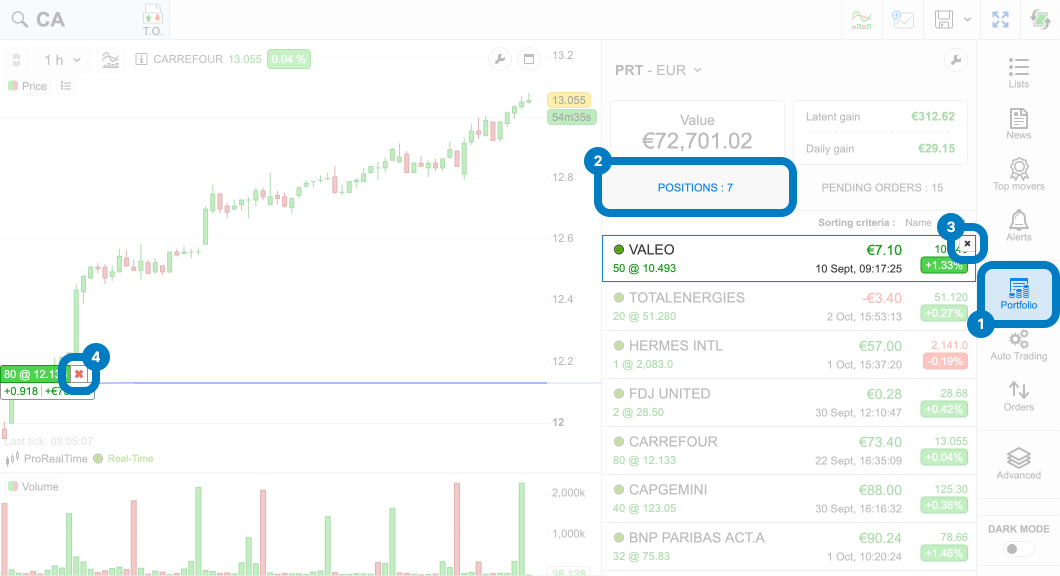
- (1) Click on the “Portfolio” icon in the menu bar on the right-hand side.
- (2) Select the "Positions" tab.
- (3) Click on the cross on the position line to send a market order.
- Click “Validate” to confirm sending the order.
- (4) You can also click on the red cross from the position label on the chart.
ProRealTime Complete / ProRealTime Premium
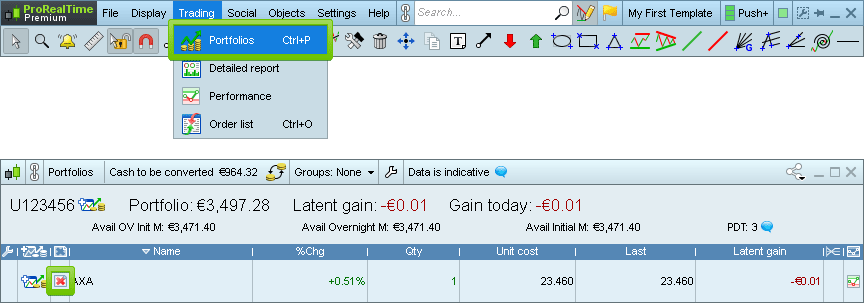
- From the main window, click on the "Trading" menu and then "Portfolio".
- From the lower part of the portfolio window, locate the line corresponding to the position you wish to close, and click on the red cross icon to place a market order to close the position.
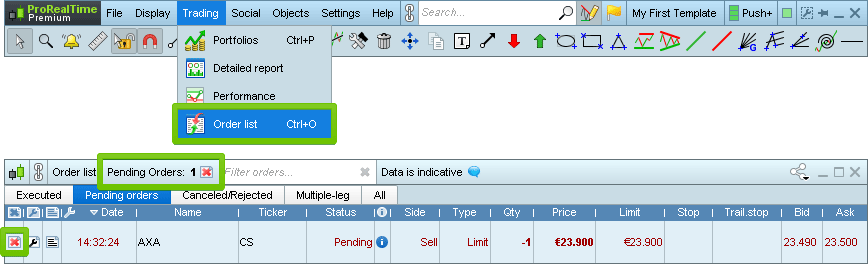
- From the main window, click on "Trading" menu and then "Order list".
- Select the "Pending orders" tab.
- Locate the line corresponding to the pending order you wish to cancel, and then click on the red cross icon to cancel it.
- Note that you can also click on the red cross icon at the top of the window to cancel all pending orders on all instruments.
These video tutorials explain how you can place orders, cancel orders, close positions from your ProRealTime charts.
Using your smartphone
- Download the ProRealTime mobile app from your smartphone.


-
At the top right of the mobile app, click on “Connect,” then log in using your account number and ProRealTime Trading password.
- If this is your first time using our mobile app, you will be asked to confirm your authentication via an SMS that will be sent to the phone number associated with your ProRealTime account.
Close a position
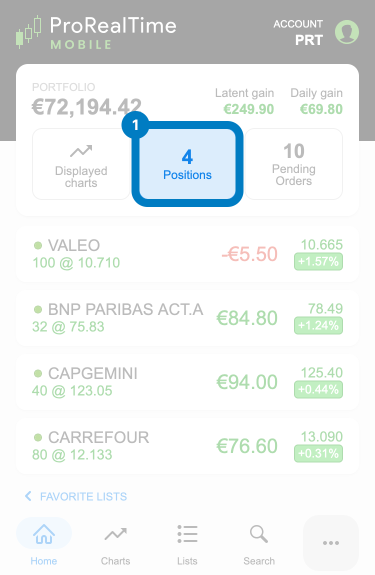
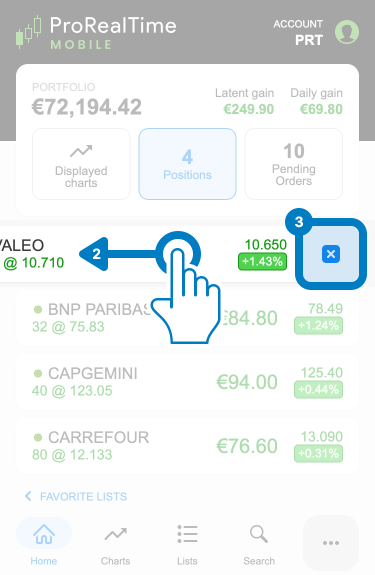
- (1) Click on the “Positions” tab.
- (2) Slide the position line to the left to display the position closing function.
- (3) Click on the blue cross icon to send a market order to close the position.
- Click “Confirm” in the order confirmation window to send the position closing order.
- You can also click on the position line and then click on the cross to close it.
Cancel a pending order
- Click on the “Pending Orders” tab.
- (2) Slide the order line to the left to display the order cancellation function.
- Click on the cross icon to cancel.
- Click “Confirm” to cancel the order.
- You can also click on the order line and then click on the cross to cancel it.
Contact us
- Please note that ProRealTime provides order reception and transmission services exclusively through its applications and does not provide these order placement services by telephone or email.
- However, if you are unable to close a position or cancel a pending order yourself in specific cases (for example, if you have an Internet connection problem, if you encounter a technical problem, etc.), you can ask ProRealTime to manually transmit an order for you, as explained below.
- In such a case, ProRealTime will only accept market orders to close open positions and requests to cancel pending orders.
- From the menu of the main window, click on Help > Technical support.
- Click on “Close positions”.
- Read the contents of the window thoroughly, then select the instrument relevant to your request from the drop-down menu in the main window and finally click on “Send.”
- Wait for the confirmation message. If you have any doubts about the submission of your request, please call us.
- Click on the "Support" icon located at the bottom right of the app.
- Explain the issue you are having in the text box, giving as much details as possible.
- Click on "Send report".
- Click on the "..." icon from lower right of the screen.
- Select "Support".
- Explain the issue you are having in the text box, giving as much details as possible.
- Click on "Send report".
- Log in to your ProRealTime Trading account.
Note: if you send your request without being logged in to your account, it will not be processed for security reasons. - Click on the “Contact us” tab in the menu.
-
Describe your request in the message box:
- If you want to cancel a pending order: either request to cancel all pending orders, or indicate the properties of the order to be canceled: instrument name, quantity, side (buy/sell), and the type (limit, stop...).
- If you want to close a position: indicate the instrument name, quantity, side (buy/sell), and the type "market". Note that if you have pending orders on the instrument, they will also be canceled.
- Click on the “Send” button.
From the email address associated with your ProRealTime Trading account, send us an email indicating:
- If you wish to cancel a pending order: either request to cancel all pending orders — or specify the properties of the order to be canceled, including the name of the instrument, the quantity, the side (buy/sell), and the type (limit, stop, etc.).
- If you want to close a position: indicate the instrument name, quantity, side (buy/sell), and the type "market". Note that if you have pending orders on the instrument, they will also be canceled.
Close positions through the broker
Using your computer
- You can use the Interactive Brokers account management interface to close positions and/or cancel orders.
- To do so, click on the following link: https://www.clientam.com/sso/Login?partnerID=prorealtim
- Log in using your Interactive Brokers password and username.
To close a position
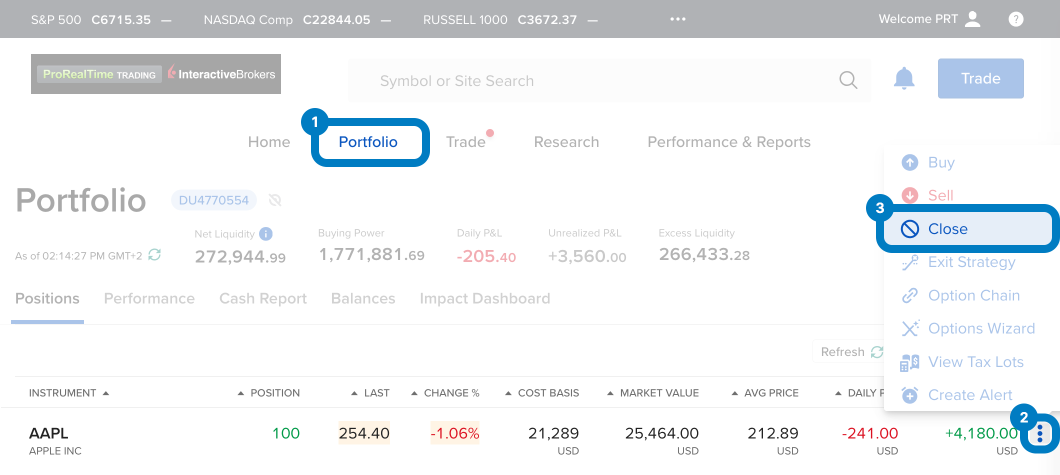
- (1) Click on the "Portfolio" tab
- (2) Identify your position and click on the three dots at the end of the line.
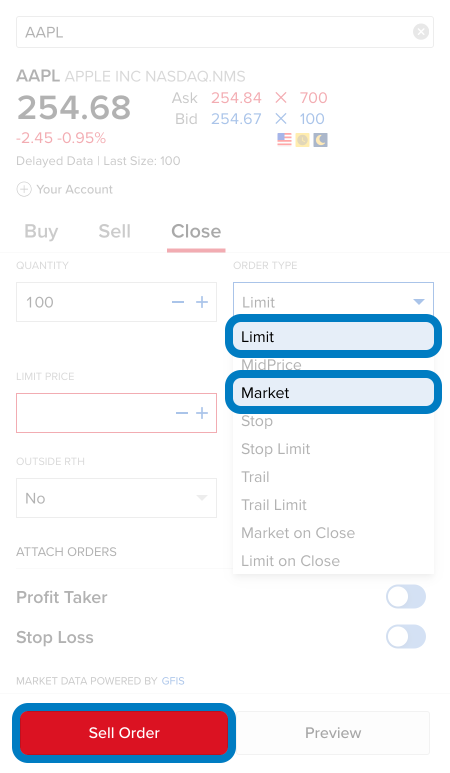
- (3) Click “Close” to open the order window. Select the order type (if you select a limit order, you must also specify a price level for your order).
- Click the button (Sell Order/Buy Order) at the bottom of the window to send your order.
To cancel an order
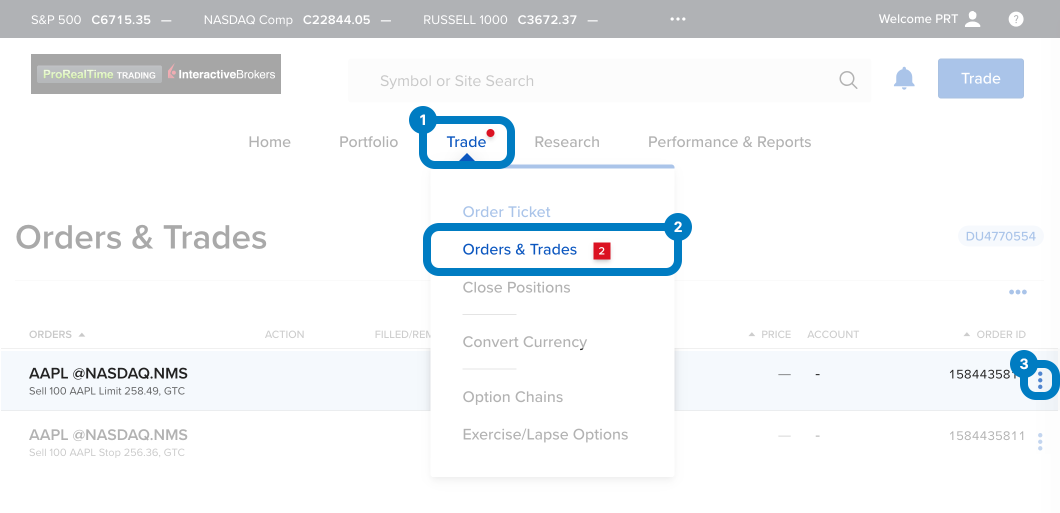
- (1) Click on the "Trade" tab, then (2) "Orders and Trades".
- (3) Identify your order and click on the three dots at the end of the line.
- Click on “Cancel.”
- Validate the cancellation by confirming the pop-up window.
- You can use the SAXO account management interface to close positions and/or cancel orders.
- To do so, click on the following link: https://www.saxotrader.fr/login
- Log in using your SAXO password and username.
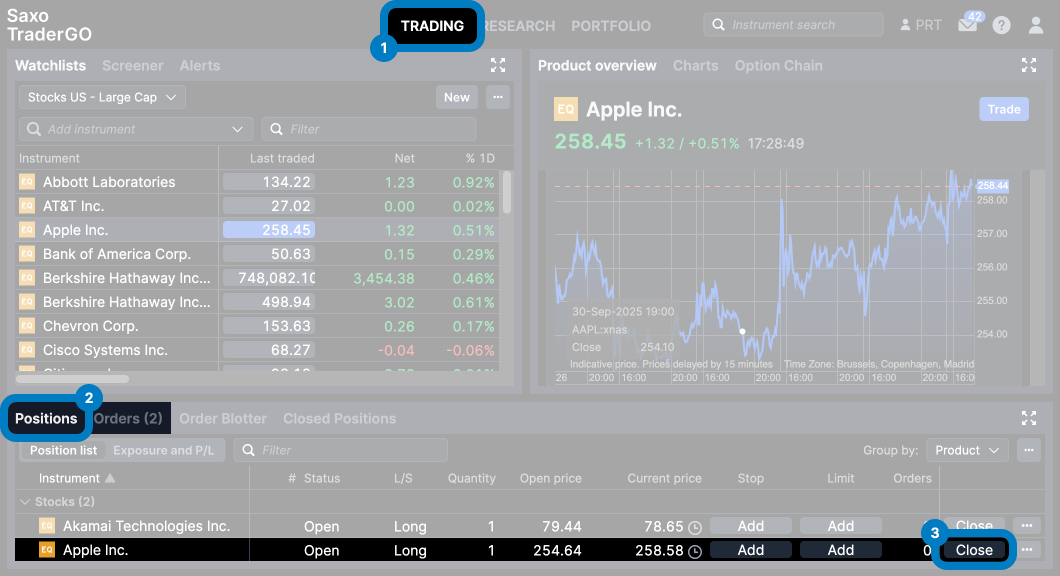
To close a position or cancel an order
- (1) Click on "Trading" at the top of the page.
- (2) In the lower panel, select the “Positions” or “Orders” tab.
- Identify the line you are looking for.
- (3) Click the “Close” or “Cancel” button at the end of the line.
Using your smartphone
- Download and install the IBKR app for your iPhone or Android.
- Log in using the same credentials as for the Interactive Brokers account management interface.
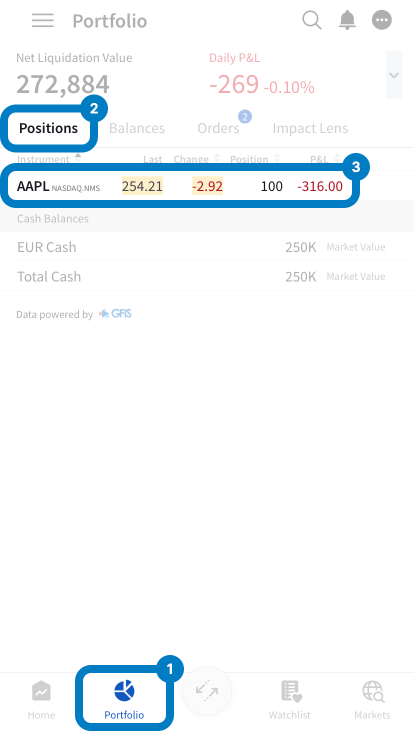
- (1) Click on the "Portfolio" tab at the bottom left.
- (2) Click on the "Positions" or "Orders" tab in the top bar.
- (3) Click on the line of the position to be closed or the order to be canceled.
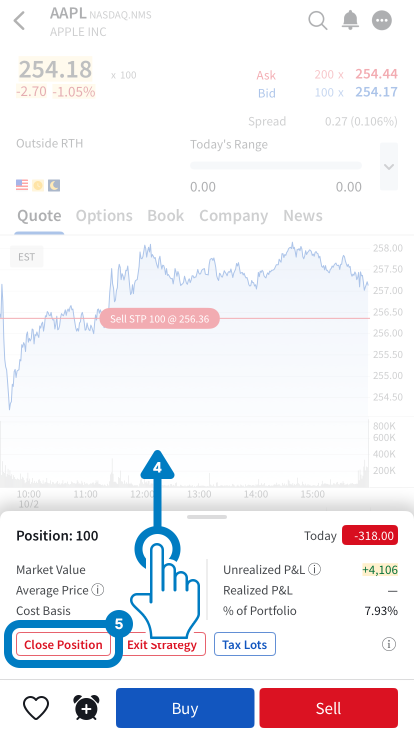
- (4) Expand the position menu as shown in the image below.
- (5) Click "Close Position" or "Cancel Order".
- Download and install the SAXO TraderGO app for your iPhone or your Android.
- Log in using your SAXO password and username.
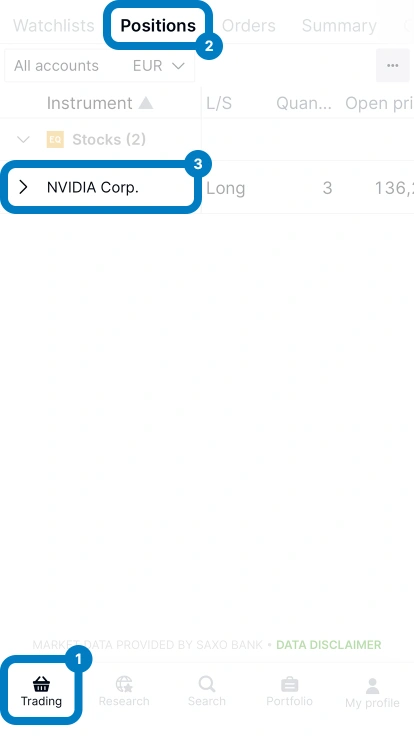
- (1) Click on the "Trading" tab at the bottom left.
- (2) Click on the "Positions" or "Orders" tab in the top bar.
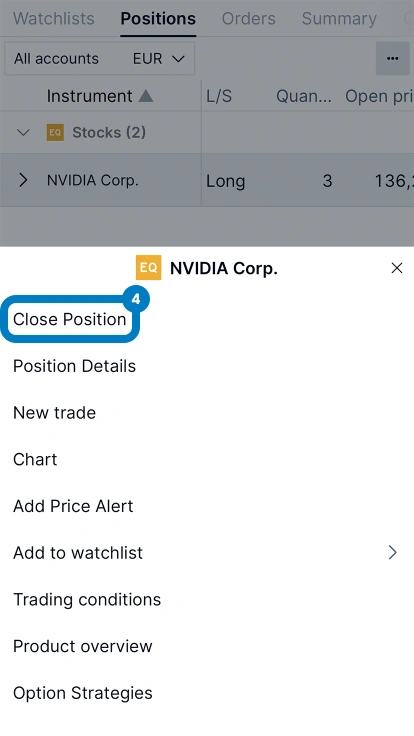
- (3) Click on the line of the position to be closed or the order to be canceled.
- (4) Click on “Close Position” or “Cancel Order.”
Contact the broker
If you need to close a position or cancel an order by phone, you may also call Interactive Brokers at the numbers listed below.
During this call, you will need to provide your account number (typically in the UXXXX format) as well as your Account Management login ID.
Phone: (Monday to Friday, London time)
- before 8:00 a.m.: +852 2156 7999
- from 8 a.m. to 5 p.m.: +41 41 562 0902
- after 5 p.m.: +1 203 618 7791
Please note that orders placed by telephone are subject to additional fees.
- Follow the instructions available at the following link: https://www.help.saxo/hc/en-us/articles/360001255683-How-do-I-request-support